
Video editing file management system for professional workflows
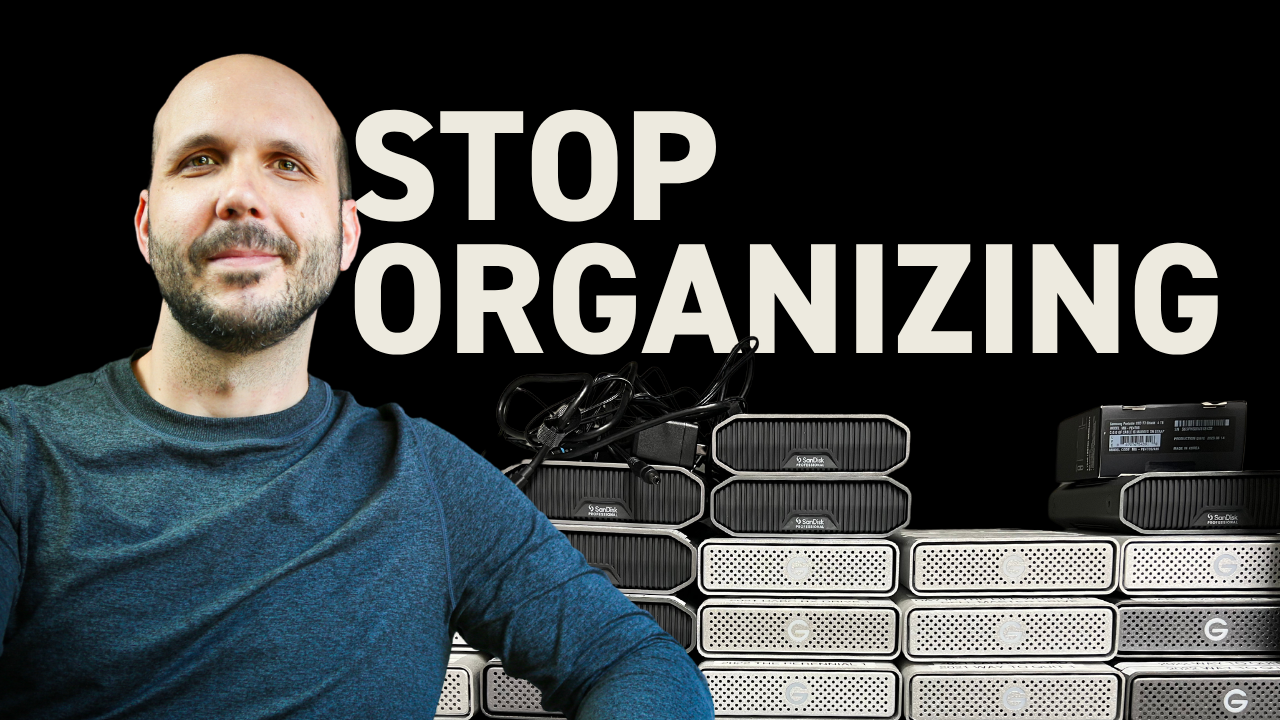
How do you organize video editing files without losing your mind?
Focus on the 20% of organization tasks that deliver 80% of the results. Professional file management isn't about perfect systems — it's about consistent habits that don't interrupt your creative flow.
The gym analogy that changed my file organization approach
What if I told you that the best way to organize your files for video editing involved doing less or even stopping for a time? After struggling with file management for the better part of 20 years, I've found peace through the 80/20 rule.
Think about two people starting at the gym. Person one wants perfection — they research the best exercises, commit to seven days a week, and overhaul their nutrition completely. They do great on day one, but they last maybe a week tops.
Person two takes a different approach. They commit to two to three times a week, cut out most junk food without stressing about it, and go on nice long walks when they can. The key with person two is consistency. While they may not become an elite athlete, by focusing on the important stuff and doing it consistently, they actually achieve most of the results they desire.
This illustrates the power of the 80/20 rule, which states that 20% of causes create 80% of the outcomes. Instead of trying to be perfectly organized and only achieving that a small fraction of the time, I focus on the top 20% of tasks that get me 80% of the way there — and I can do those consistently.
What good file organization should accomplish
Good organization should serve four purposes. One, it should not impede our creative flow. Two, our media should always remain online in our editing software. Three, files should be easy to access for ourselves and our clients. And four, all of the actions should be simple and repeatable.
If your system fails any of these tests, you're probably overcomplicating it.
Professional folder structure that actually works
My folder structure is simple — there's nothing flashy, no colors, no icons, and no many subfolders. There's simply a place for everything, and these categories have served me well the past few years without needing adjustment.
Here's what I use:
- Assets: Images, screenshots, or a slate for a final online
- Color: Since I work with colorists, this includes color renders I deliver to color and receive from color
- Documents: Scripts, storyboards, and any other creative material in document format
- Exports: Rough cuts and delivery final movie files
- GFX: Motion graphics and the design elements used to create them
- Media: Raw footage and audio from shoots
- Mix: Final mixes from the audio post-house I collaborate with
- Music: Audio files from composers or stock libraries
- SFX: Sounds from sound effect libraries or online subscriptions like Epidemic Sound
- VFX: Visual effects final renders
- VO: Voiceover files from talent we hire
One quick tip: keep an empty copy of these folders on your hard drive. Every time you start a new project, copy and paste them over and your folders will be ready to go.
How to mirror your bin structure
My bin structure matches my folder structure almost exactly, and that's by design. There's only a couple of differences. First, there's no documents folder in my bins because I would never import a script into Premiere Pro. There's also not an exports folder in my bins, and in the file organization, there's no sequences folder because sequences live in the editor. Besides that, they are identical.
Create a project template that has an empty set of bins. At the start of each project, you can start with your template and you'll have a fresh set of bins each time.
The professional video editing export settings for client revisions become much easier to manage when your bins stay organized from day one.
The download workflow that keeps everything online
When I'm starting a project, staying organized feels simple because there just aren't that many files yet. The problems arise when I'm mid-edit and adding files to my project — 99% of the time, it comes from a download.
Here's my process: I have Premiere Pro open and I always have a few more things open to the left. One is a browser window, two is a finder window that shows my downloads folder, and a second finder window that has the file structure of the current project.
If I download a new piece of music, it shows up in the downloads folder. I drag it right over to my music folder, then I drag it right over to my bin in Premiere Pro. Now we're ready to edit, our media will stay online, and we're good to go.
One alternate way would be to drag it right over to your timeline. In this case, the music file shows up in the root of your bins, so you would just want to drag it over to your music folder to stay organized.
Grab the Editing File Management System Guide to see exactly how I handle high-end editing projects without file chaos or missed deadlines.
Sequence naming that prevents client confusion
My sequences bin is one of the only bins that has sub-bins. One funny thing — I've met so many editors who, without knowing anything about each other's strategies, all ended up with a bin called "_old." That holds all the sequences we're not currently working on. "Stringout" holds all the raw footage I'm using for my edit. "Delivery" is self-explanatory.
For the actual file name, I always start with the date in a particular format: four-digit year, two-digit month, and two-digit day. This way, when you sort by name, they stay in numerical order. Then I do an underscore, a short description of the project, another underscore, and a sequence code.
Every time I make a new sequence, I up that number — 01, 02, 03. If a client says they like the intro from sequence 04 but the ending of sequence 06, I can pull those up and know exactly what they're talking about. Whenever you're going to make any change, make a new sequence. It doesn't take up much space and you can always go back.
The backup system that actually protects you
You might have heard of the 3-2-1 rule, which states you should have three copies of your files on two different types of media, and one should be offsite.
My first rule is that I always have clients keep a copy of their footage at their own location. If you're only editing for yourself, I recommend keeping one copy of your raw files offsite — maybe at a friend's house or an office. Then I edit off my own drives and have those drives automatically back up to the cloud using software called Backblaze.
Is my organization system perfect? No. But does it get me 80% of the way there with as few headaches as possible? Yes.
If you're frustrated with your system, I recommend taking a break from it for a few days and use that time to figure out the most important tasks you can focus on to get you 80% of the way there. Start building habits and doing them consistently, and you'll get to the same file organization peace that I have.
The Edit Like A Broadcast Pro course covers this file management approach alongside the editing techniques that create emotionally-impactful work for serious clients with real budgets.
